 CallerHub
Phone systems and connections
CallerHub connects to phone systems in four ways: via an HTTP lookup per call, as an LDAP phone book, through exported phone books and – for call analytics – through call records.
Step-by-step guides: STARFACE · 3CX · Asterisk/FreePBX · Yealink/Snom · Mitel 100 · FRITZ!Box · all solutions
Name lookup via HTTP
Each phone system is connected as a separate interface with its own API key and its own allowed IP addresses. The basic edition allows one interface, the full edition up to ten (more with a special licence). All systems use the same port; CallerHub identifies them by their API key.
| System or profile | Response format | Example address | Setup | Status |
|---|---|---|---|---|
| STARFACE | Text | …/lookup?number= + header X-Api-Key | via a STARFACE module; sample module CallerHub_Interface_v49.sfm included | tested |
| 3CX | JSON | …/lookup?format=json&apikey=…&number=[Number] | CRM template generated by CallerHub (“3CX template …”) | Testers wanted |
| Asterisk / FreePBX | Text | …/lookup?apikey=…&called=${EXTEN}&number=${URIENCODE(${CALLERID(num)})} | dial plan with CURL (module func_curl) | Testers wanted |
| VitalPBX | Text | …/lookup?apikey=…&number=[CIDNUM] | CID lookup source in the inbound route | Testers wanted |
| Issabel (also FreePBX) | Text | path /lookup, query format=text&apikey=…&number=[NUMBER] | CallerID Lookup Sources | Testers wanted |
| Yealink / Fanvil | XML phone book | …/lookup?format=yealink&apikey=…&number=#SEARCH | remote phone book on the phone or via provisioning | Testers wanted |
| Snom | XML phone book | …/lookup?format=snom&apikey=…&number=#SEARCH | XML phone book on the phone | Testers wanted |
| Generic (HTTP) | Text, JSON, XML | …/lookup?format=json&apikey=…&number=03023125017 | any system that can call an address via HTTP GET on a call | generic |
Tested: the STARFACE connection, the CSTA connection of Mitel 100, Aastra and OpenCom, Mitel phones 6800/6900 and the FRITZ!Box. The guides for the other systems are based on published interfaces; check placeholders, menu paths and setting names against the documentation of your version.
One card per phone system
On the Interfaces page, each system has its own card with name, status of the last request, API key, allowed IP addresses and the data sources queried. “Copy guide” provides the setup guide for the selected system with the real API key.


Example Asterisk / FreePBX
exten => _X.,1,Set(CURLOPT(httptimeout)=2)
 same => n,Set(CALLERID(name)=${CURL(http://192.168.10.5:8080/lookup?apikey=API-KEY&called=${EXTEN}&number=${URIENCODE(${CALLERID(num)})})})
 same => n,Goto(from-pstn,${EXTEN},1)
Example Yealink (provisioning)
remote_phonebook.data.1.url = http://192.168.10.5:8080/lookup?format=yealink&apikey=API-KEY&number=#SEARCH
remote_phonebook.data.1.name = CallerHub
features.remote_phonebook.enable = 1
STARFACE module
STARFACE has no built-in name lookup via web address; a module in the Module Designer asks CallerHub for the name on every incoming call. To set this up, import Samples\CallerHub_Interface_v49.sfm; this module handles the name lookup. An extended module also reports all events of a call (ringing, answered, hung up, forwarded) for call analytics, statistics and the live view; details on request from support. Anonymous calls are not looked up.
LDAP phone book for systems without HTTP lookup
Many phone systems and desk phones do not query a web address but an LDAP directory. For these, the Phone book module provides a read-only LDAPv3 directory (port 389, 636 with LDAPS). The reverse lookup for incoming calls queries all active data sources, including rules, block and VIP list.
Typical devices: Unify OpenScape Business, Auerswald COMtrexx/COMpact, Avaya J100 on IP Office, Yeastar P-Series, innovaphone (reverse lookup), Ascom IP-DECT, Grandstream UCM, pascom, Gigaset, Yealink and the Mitel 100 family (Mitel 112, 130, 150).

Server:            name or IP address of the CallerHub computer, port 389 (636 with LDAPS)
Base DN:           ou=callerhub
Name filter:       (|(cn=%)(sn=%))
Number filter:     (|(telephoneNumber=%)(mobile=%))
Display attribute: cn          Number attribute: telephoneNumber
Write attempts are rejected, StartTLS is not supported. The LDAP connection of the Mitel 100 family is tested with CallerHub.
Phone book export and FRITZ!Box
Cloud phone systems such as Microsoft Teams, Zoom, NFON or Placetel and the FRITZ!Box use their own contact lists. For these, CallerHub exports the entries of all phone number lists (after rules, without blocked numbers).
| Format | Use |
|---|---|
| FRITZ!Box (XML) | FRITZ!Box: Telephony → Telephone Book → Restore. The number of entries is limited depending on the model. |
| vCard 3.0 (.vcf) | Outlook, Auerswald, Gigaset and many cloud phone systems |
| CSV | Excel and import into cloud phone systems (e.g. Zoom, NFON, Placetel) |
| Yealink (XML) | Remote phone book for Yealink and compatible phones |
Phones with a remote phone book can also load the list directly: /phonebook?format=yealink&key=ACCESS_KEY (formats yealink, fritzbox, vcard, csv). For call analytics, CallerHub reads the FRITZ!Box call monitor on port 1012.
Synchronising the STARFACE address book
For outgoing calls, the STARFACE app, web client and call lists only show names from STARFACE address books. CallerHub therefore writes the contacts of its phone number lists into an address book of its own via the STARFACE REST API – every night at the configured time, after each reload of the data sources and at the push of a button.
- Only in its own address book: CallerHub creates, changes and deletes entries only there. If a source is empty or has shrunk by more than half, it deletes nothing.
- No inbound access needed: the connection goes from CallerHub to the phone system; with OAuth from STARFACE 10.
- Large data sets in stages: limits per run and for the whole address book, choice of data sources.
Provisioning Mitel phones (6800/6900)
The phone provisioning module provides Mitel phones with their settings via HTTP and TFTP – extension, SIP account, keys and pages – and shows call info, CRM search and a team page on the display.
- Phones as a table: MAC, model, extension, name; the status column shows when the phone last fetched its file.
- Keys for everyone: busy lamp, speed dial, own mailbox, functions or new page – sorted by dragging.
- Team page: the “Team” softkey shows colleagues with their status (on a call, ringing, free); selecting one dials.
STARFACE Cloud does not answer busy-lamp subscriptions from third-party phones; colleague keys can then be set up as speed dials, and the team page still shows the status.
Call records for call analytics
Call analytics needs the call detail records (CDR) of the phone system. They reach CallerHub as a file, live over a connection or via an API. Up to five live receivers can be set up.
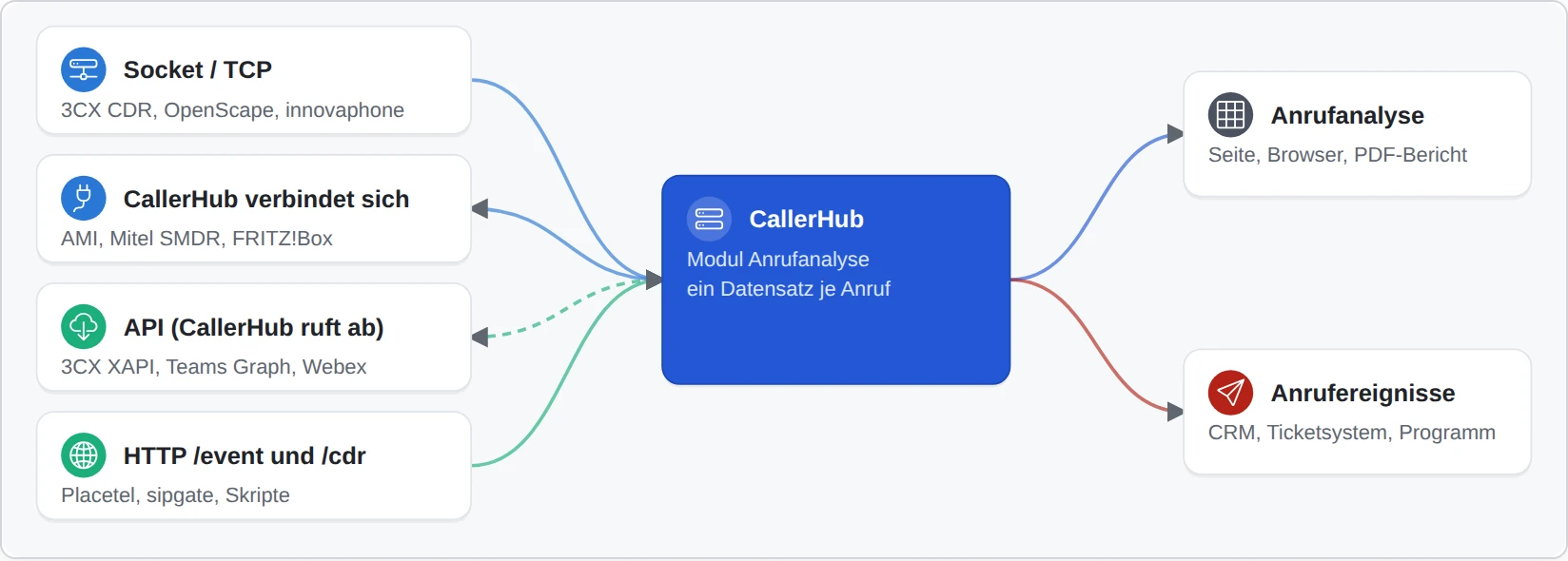
| Source | Path | Setting in the phone system |
|---|---|---|
| Asterisk / FreePBX | File Master.csv or live via AMI (CallerHub connects, port 5038) | manager.conf: user with read = cdr; cdr_manager.conf: enabled = yes |
| STARFACE | File output.csv | Admin → Reports → Export call records |
| 3CX (v18/v20) | CDR socket active (CallerHub listens, e.g. port 5100) or passive; CSV export | Admin → Settings → CDR |
| 3CX V20 (cloud or on-premises) | API: CallerHub polls XAPI | Integrations → API: client with XAPI access |
| Microsoft Teams Phone | API: Microsoft Graph, permission CallRecords.Read.All | App registration in Microsoft Entra ID |
| Webex Calling | API: analytics.webexapis.com, scope spark-admin:calling_cdr_read | Control Hub: role “Detailed Call History API access” |
| Mitel MiVoice Office 400 | SMDR in PC5 format, CallerHub connects (port 1080) | Output of call records via TCP |
| Unify OpenScape Business | Call charge data via LAN, CallerHub listens (e.g. port 5101) | TCP client to CallerHub address:port |
| innovaphone | TCP or HTTP /cdr | Gateway → CDR0 |
| FRITZ!Box | Call monitor, CallerHub connects (port 1012) | dial #96*5* once on a phone |
| Placetel | HTTP /event | Notify API with the address of CallerHub |
| sipgate.io | HTTP /event | URL for incoming and outgoing calls |
| Any system or script | HTTP or CSV file in the CallData folder | details on request from support |
Setup in five steps
- Under Interfaces, add an interface, choose the phone system and enter a name.
- Under “Allowed IP addresses”, enter the address of the system or the network of the phones, e.g.
192.168.10.20or192.168.20.0/24. - Check the data sources queried and choose “Save and apply”.
- Test in the browser of a computer on the same network:
http://192.168.10.5:8080/lookup?apikey=API-KEY&number=040 66969000returns the name. - Set up the phone system according to the guide and make a test call. The request appears on the home page under “Recent requests”.

Common connection errors
| Symptom | Cause and remedy |
|---|---|
| No entry under “Recent requests”, status “Waiting for requests” | The request does not reach CallerHub. Check the address in the phone system (IP, port, http/https), the Windows firewall and firewalls between networks. |
status=401 | API key wrong or missing. Copy the guide again; a newly generated key must also be changed in the phone system. |
status=403 | The sender address is not among the allowed IP addresses. Behind NAT or a reverse proxy, the sender differs. |
status=429 | Too many wrong keys from this address. Wait until the lockout ends (default 5 minutes). |
| Request arrives but no name | Number unknown, wrong format for the system, or the system's timeout is shorter than the response time. |
| HTTPS fails | The system does not trust the certificate or the certificate name does not match. Import the root certificate into the system. |
| Wrong umlauts or name cut off | Responses are UTF-8; check the character set of the system. Set the maximum name length under Administration → Advanced. |
If the cause remains unclear, “Troubleshooting → Start extended recording …” records every request with all headers (keys masked). The built-in phone system simulator tests a setup without a real system calling.